
Aluvii memberships allow you to offer incremental and auto-renewal plans. When creating a membership package, you can set the package to run a payment plan when sold.
A. First, you'll need to configure the Pay Plan settings in the Membership Packages module under the Payment Plans tab.
Select the payment plan type you want to edit or create a new one from the grid options dropdown.
Incremental Payment Plan - allows the customer to pay for membership over several months in installments.
- Payment Plan Name – The name of the payment plan that appears when assigning a plan to a membership.
- Billing Frequency – Defines how often payments are collected. Available options are Monthly and Yearly.
- Number of Periods – The total number of billing periods used to divide the membership fee into installment payments.
For example, if a membership costs $600, the Billing Frequency is set to Monthly, and the Number of Periods is set to 6, the total cost will be divided into six equal payments of $100 each. The guest will be charged $100 at the time of purchase and will continue to be billed $100 each month for the next five months. After the sixth payment is collected, the full membership amount of $600 will have been paid in full.
- Auto-Renewal Payment Plan - This type will renew the membership repeatedly using the price you set up for your membership.
- Payment Plan Name – The name of the payment plan that will be displayed when assigning the plan to a membership.
- Number of Periods – The total number of renewal periods for the membership. The membership will automatically renew each time it expires until the specified number of periods has been reached.
- Use Undefined Periods – When enabled, the system overrides the Number of Periods setting and continues renewing the membership indefinitely until the payment plan is manually canceled.
- Use Renewable Price – When enabled, the system uses the membership's Renewable Price for each renewal.
- Use Discounted Price – When enabled, the system uses the membership's Discounted Price for renewals.IMPORTANT NOTE: If both Use Renewable Price and Use Discounted Price are enabled, the renewal price depends on the original transaction. If a discount code was applied, the system will use the Discounted Price for all renewals and ignore the Renewable Price. If no discount code was applied, the system will use the Renewable Price instead. This allows a single payment plan to support both discounted and standard renewal scenarios automatically.For example, if you set the Number of Periods to 5, the membership will automatically renew five times before renewal stops. Once the fifth renewal has been completed, no additional renewals will be processed under that payment plan. The length of each renewal period (for example, monthly or yearly) is determined by the membership package itself, not by the payment plan. The payment plan only controls how many times the membership will renew.
B. After configuring the payment plan, you can assign it to a membership package to be used by the membership package.
1. In the "edit membership package" screen, check the box for Allow Payment Plan.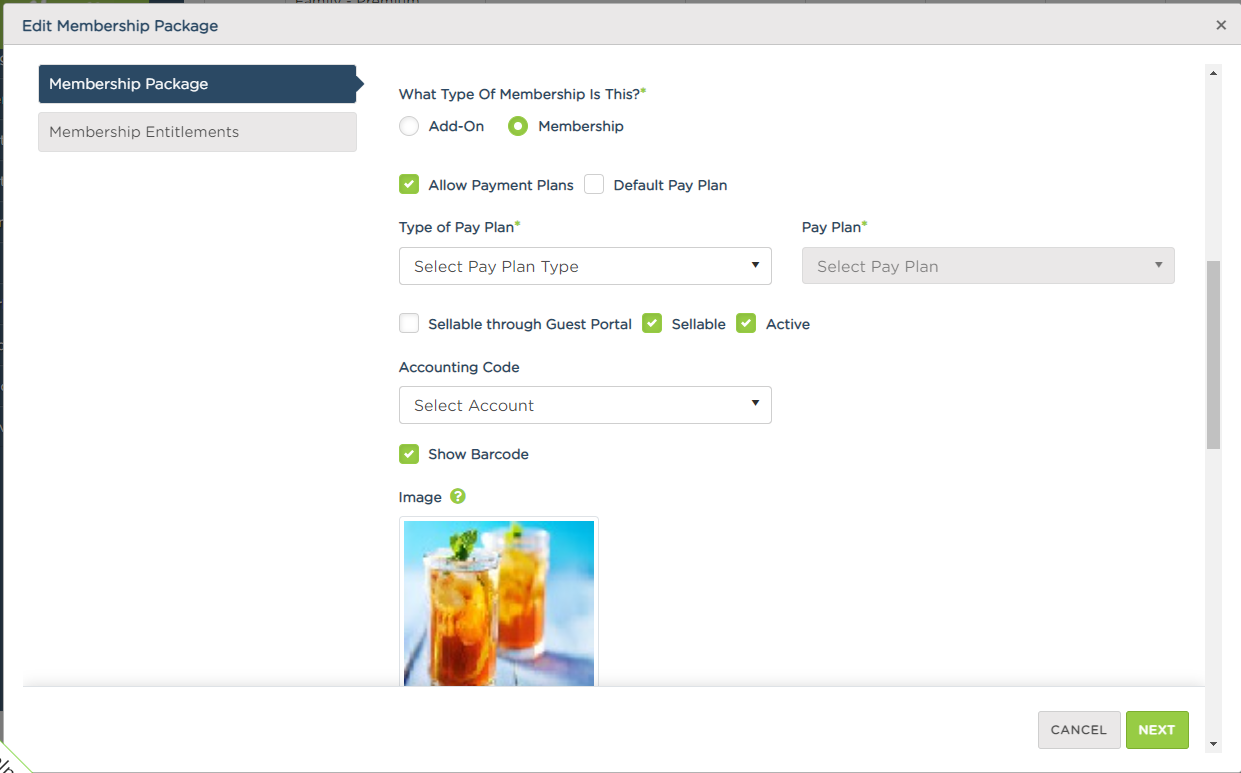
2. Select the type of pay plan (incremental or auto-renewal) and the payment plan option you created in the first steps. Note that the checkbox for Default Pay Plan will check the pay plan option by default when selling the membership.
3. Click Next and Submit to save the changes.
After selling the membership, you can view the membership on the guest's account in the Account Info tab, and you'll see a credit card icon on the membership indicating the membership is on a pay plan. You can click the icon to see the pay plan details and payment history.
The Pay Plans tab in the guest's account will show all the payment plans for the account. This tab allows you to view the history of the pay plan and modify the pay plan. Modifying the pay plan also allows you to change the card on file or cancel the pay plan.
Comments
Article is closed for comments.