
In this section, you can create and manage the punch codes employees use when clocking in and out. Punch codes help categorize time entries as paid or unpaid, assign work to specific job titles, and provide visual indicators through customizable colors. Here's how you can do it:
- First, go to Timekeeping and click on the Punch Codes Management tab. In this section, you will see 3 entries by default, which you can use right away.
- Next, to add a new punch code, click on the + New Punch Code button.
- Now, add the following information:
- Punch Code Name - The name of the punch code employees will see during the time punching.
- Punch Code Type - Indicates whether the punch code record is Billable or Non-Billable.
- Job Title - Select the job title associated with the punch code, if applicable.
- Color - Select a color to visually distinguish the punch code throughout the system.
- Once done, click on "Create Punch Code".
- To edit the punch code, simply click on the Ellipsis menu [...], and click on the Edit option. The same window will pop up as shown in step #4 so you can edit the details of the punch code. Click on Save Changes to proceed with the process.
- You can also deactivate the punch code by clicking the Deactivate option. This option will take off the code from the clock in / clock out station. But the existing time card punches that have it will be kept on record.
- If you wish to delete the punch code, click Delete. This will permanently remove the code.
- Finally, once you have finished configuring the settings, navigate to the Clock In / Clock Out module so your employees can begin using their punch codes to record their work hours.
IMPORTANT NOTE:
The code marked as "Default" status only has the "Billable" option and cannot be associated with any Job Title. It only has the Edit option, and it cannot be deactivated or deleted.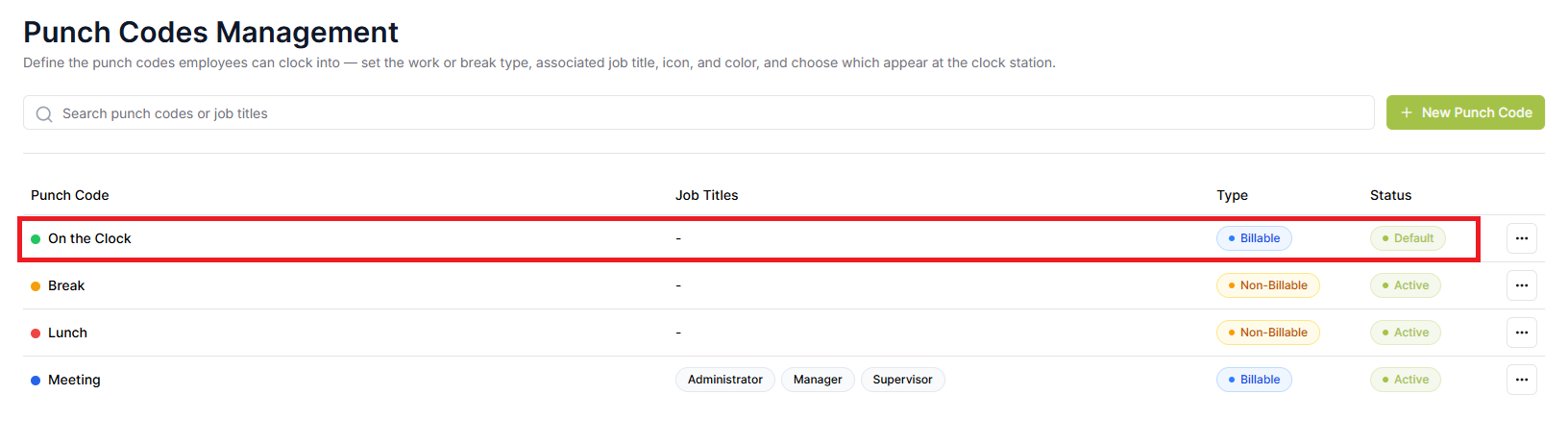
The code marked as "Default" status only has the "Billable" option and cannot be associated with any Job Title. It only has the Edit option, and it cannot be deactivated or deleted.
Comments
Article is closed for comments.